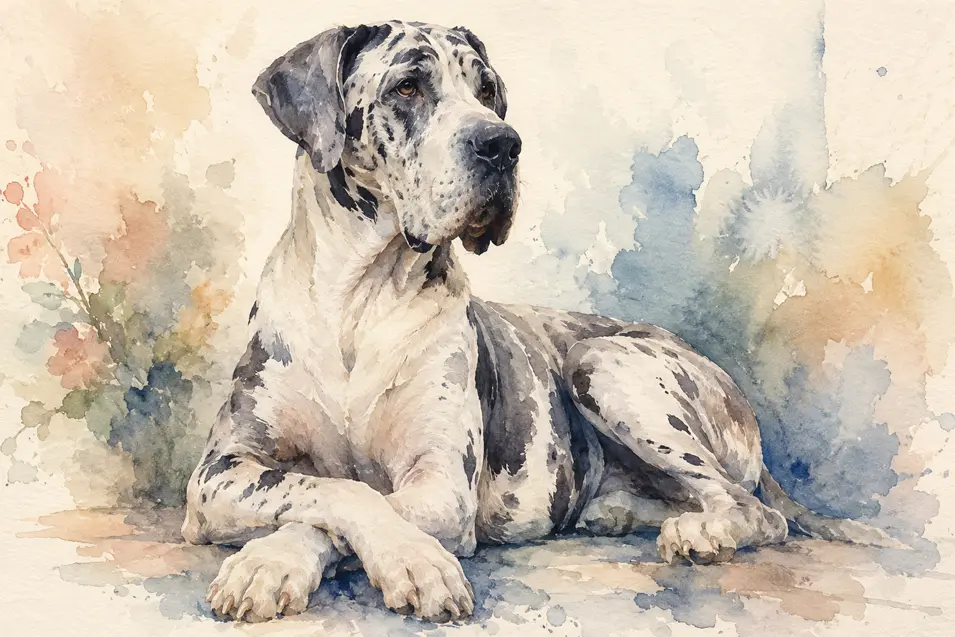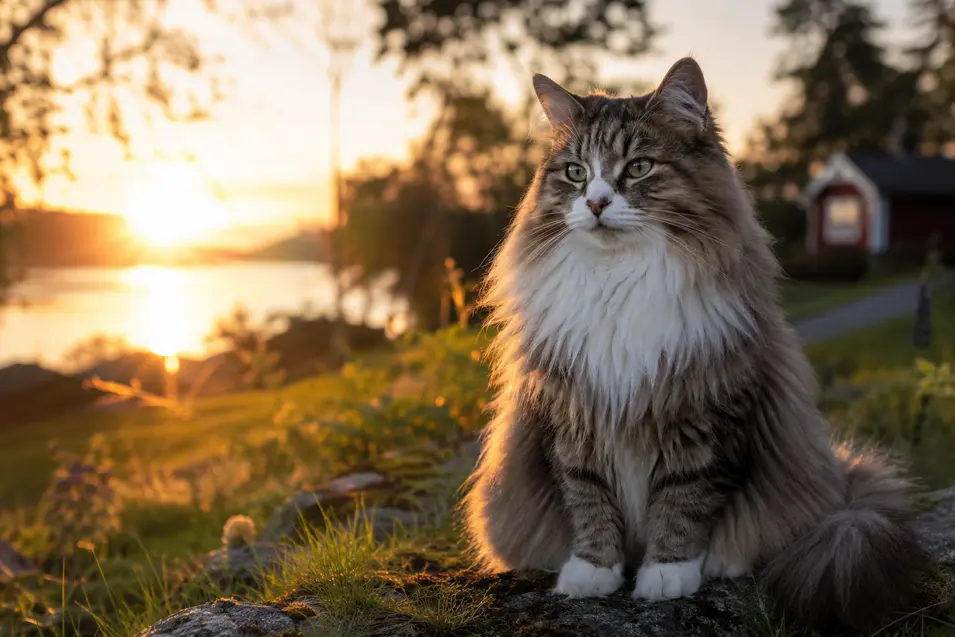
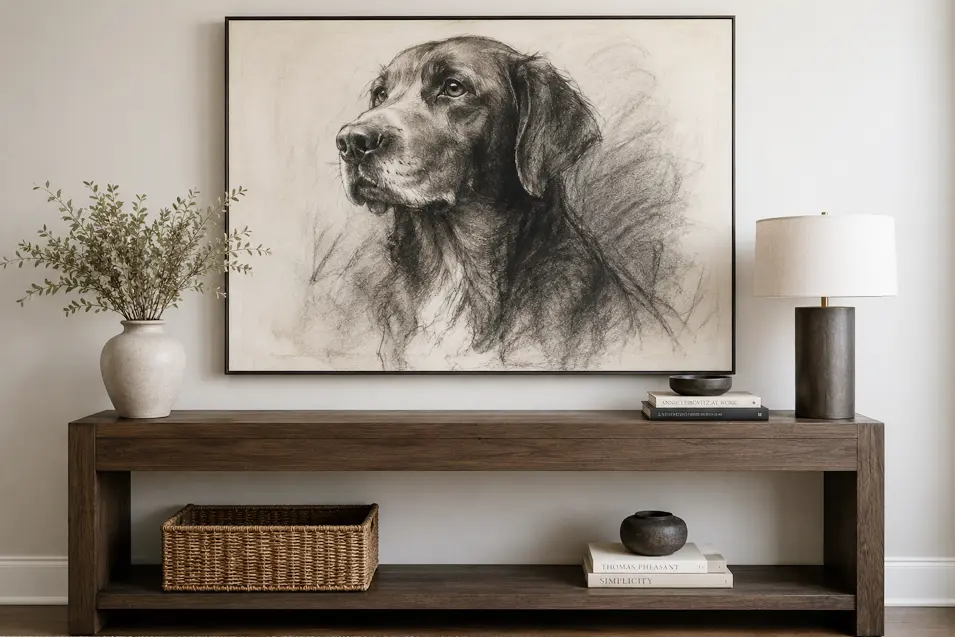
One of the most exciting features of modern AI image generators is the ability to edit existing images. Need to change a collar color on your dog? Add a flower arrangement to a room? Replace a background? In theory, it sounds simple.
In reality, many AI users quickly discover a frustrating problem.
You ask the AI to make one small change, and suddenly everything changes.
The dog’s face looks different.
The room is rearranged.
The lighting changes.
Furniture disappears.
Colors shift.
The entire image feels different.
If you’ve ever thought, “I only wanted to change one thing,” you’re not alone.
The good news is that you’re not doing anything wrong. Understanding how AI editing works—and how to communicate with AI effectively—can dramatically improve your results.
This guide will show you how to make targeted edits while preserving the parts of the image you already love.
Why AI Changes More Than You Asked
The first thing to understand is that AI image editing is not always the same as Photoshop.
Traditional editing software modifies specific pixels while leaving everything else untouched.
AI often works differently.
In many cases, the system interprets your instructions and partially regenerates the image based on what it believes should happen. As a result, changing one element can unintentionally affect surrounding details.
For example:
You request:
Change the dog’s collar from red to blue.
The AI may decide to:
- Adjust lighting
- Modify fur colors
- Change shadows
- Alter the background
- Shift composition
This isn’t necessarily a mistake. The AI is trying to create what it believes is a cohesive image.
The challenge is learning how to limit that behavior.
The Most Important Phrase: “Do Not Modify”
One of the most powerful editing techniques is using preservation language.
Instead of saying:
Change the collar to blue.
Try:
Change only the dog’s collar from red to blue. Do not modify the dog’s face, fur, eyes, pose, lighting, background, furniture, camera angle, composition, or any other element of the image.
This immediately provides boundaries.
The more specific you are about what should remain unchanged, the better the results tend to be.
Understanding Preservation Prompts
A preservation prompt tells the AI exactly what must stay the same.
Think of it as creating a protective fence around the image.
Common preservation instructions include:
- Preserve all existing details
- Maintain original composition
- Keep lighting unchanged
- Preserve camera angle
- Maintain background exactly as shown
- Keep subject expression unchanged
- Do not alter colors except specified element
- Keep furniture and room layout identical
These phrases can significantly reduce unwanted changes.
The Golden Rule of AI Editing
Always tell the AI:
What to Change
AND
What Not to Change
Many users only provide half the instruction.
For example:
Poor Prompt:
Add flowers to the table.
Better Prompt:
Add a small vase of white flowers to the table. Preserve all existing furniture, wall colors, lighting, room layout, flooring, artwork, and architectural details.
The second prompt gives the AI far more guidance.
Easy Edits vs. Difficult Edits
Not all edits are created equal.
Some modifications are relatively easy for AI.
Others require significant image reconstruction.
Easy Edits
These often work well:
- Changing colors
- Adding accessories
- Background blur
- Minor lighting adjustments
- Small decorative additions
- Frame changes
- Text removal
Medium Difficulty Edits
These may affect nearby elements:
- Clothing changes
- Seasonal transformations
- Hairstyle changes
- Furniture replacements
- Adding objects
Difficult Edits
These frequently trigger broader image regeneration:
- Changing poses
- Moving subjects
- Repositioning furniture
- Altering architecture
- Rebuilding rooms
- Adding new people or animals
The more complex the request, the more likely the AI is to reinterpret the entire scene.
Editing Pets Without Changing Their Appearance
Pet owners often encounter a specific challenge.
You ask:
Add a bow tie.
And suddenly your dog looks like a different dog.
To avoid this, include preservation language that references physical characteristics.
Example:
Add a blue bow tie to this dog. Preserve facial structure, fur color, eye color, expression, ear shape, body proportions, pose, and all other physical features.
This helps maintain consistency.
Protecting Backgrounds and Interiors
Home décor images are particularly vulnerable to unwanted changes.
A request such as:
Add a plant.
Can sometimes lead to:
- New furniture
- Different wall colors
- Changed lighting
- Altered room dimensions
Instead, try:
Add a medium-sized potted plant beside the sofa. Preserve all existing furniture, flooring, wall colors, artwork, room dimensions, windows, lighting, and architectural details.
Specificity is your friend.
Use “Only” More Often
The word “only” is surprisingly useful.
Instead of:
Make the collar blue.
Try:
Only change the collar from red to blue.
Or:
Only replace the background sky with a sunset.
This helps communicate that the requested modification should remain limited in scope.
Preserve Camera Angle and Composition
Many AI edits unintentionally shift the framing of an image.
The result can feel like a completely different photograph.
To prevent this, include:
- Preserve camera angle
- Maintain composition
- Keep original framing
- Preserve subject placement
- Maintain perspective
Example:
Replace the background with a beach scene while preserving the original camera angle, composition, framing, and subject placement.
Editing One Element at a Time
One of the most common mistakes is attempting too many changes at once.
For example:
Change the collar, add sunglasses, replace the background, brighten the image, and make it winter.
This increases the likelihood of unexpected results.
A better approach:
Step 1: Change collar.
Step 2: Add sunglasses.
Step 3: Replace background.
Step 4: Adjust lighting.
Small incremental edits often produce superior results.
Building a Preservation Template
Consider creating a reusable editing template.
For example:
Make the requested change while preserving:
- Subject identity
- Facial features
- Pose
- Composition
- Camera angle
- Lighting
- Background
- Colors
- Perspective
- Image quality
Do not modify any elements not specifically mentioned.
You can copy and paste this whenever editing important images.
Before-and-After Editing Examples
Weak Prompt
Add glasses.
Possible result:
- Different face
- Different lighting
- Altered composition
Strong Prompt
Add thin black eyeglasses to the pet. Preserve facial structure, expression, fur texture, lighting, background, composition, camera angle, and all existing details.
The difference can be dramatic.
Understanding When Regeneration Is Necessary
Sometimes the AI must rebuild parts of the image.
Examples include:
- Changing poses
- Rotating subjects
- Moving major objects
- Creating new environments
In these situations, preservation prompts help but cannot guarantee perfect consistency.
Knowing when regeneration is unavoidable helps set realistic expectations.
The Future of AI Editing
AI editing tools are improving rapidly.
Future systems will likely offer greater precision, allowing users to isolate individual elements much more effectively. However, even as technology advances, clear instructions will remain one of the most important factors in achieving reliable results.
The better you communicate your intentions, the better the AI can understand what should change—and what should stay exactly the same.
The Secret to Better AI Edits
The biggest lesson is surprisingly simple.
Most users focus entirely on what they want changed.
Experienced users focus equally on what they want preserved.
That small shift in thinking often transforms frustrating editing sessions into successful ones.
Before every edit, ask yourself:
What do I want to change?
Then ask:
What absolutely must remain the same?
When you communicate both clearly, you’ll dramatically improve your chances of getting the result you envisioned.
In the world of AI image editing, preservation prompts are often the difference between a minor adjustment and a completely different image.